Add-ons: user guide
An add-on is a separate program that gives LocalAI new tools, pages or services. The host installs it, starts it and checks what it may do. Examples are Sandbox, Simple Office, Tables, Calendar, Telegram and Gmail.
An installed add-on is trusted code. It runs as the operating system user that runs LocalAI. It is not sandboxed. Install only add-ons that you trust. An add-on that you install from a local file is not signed.
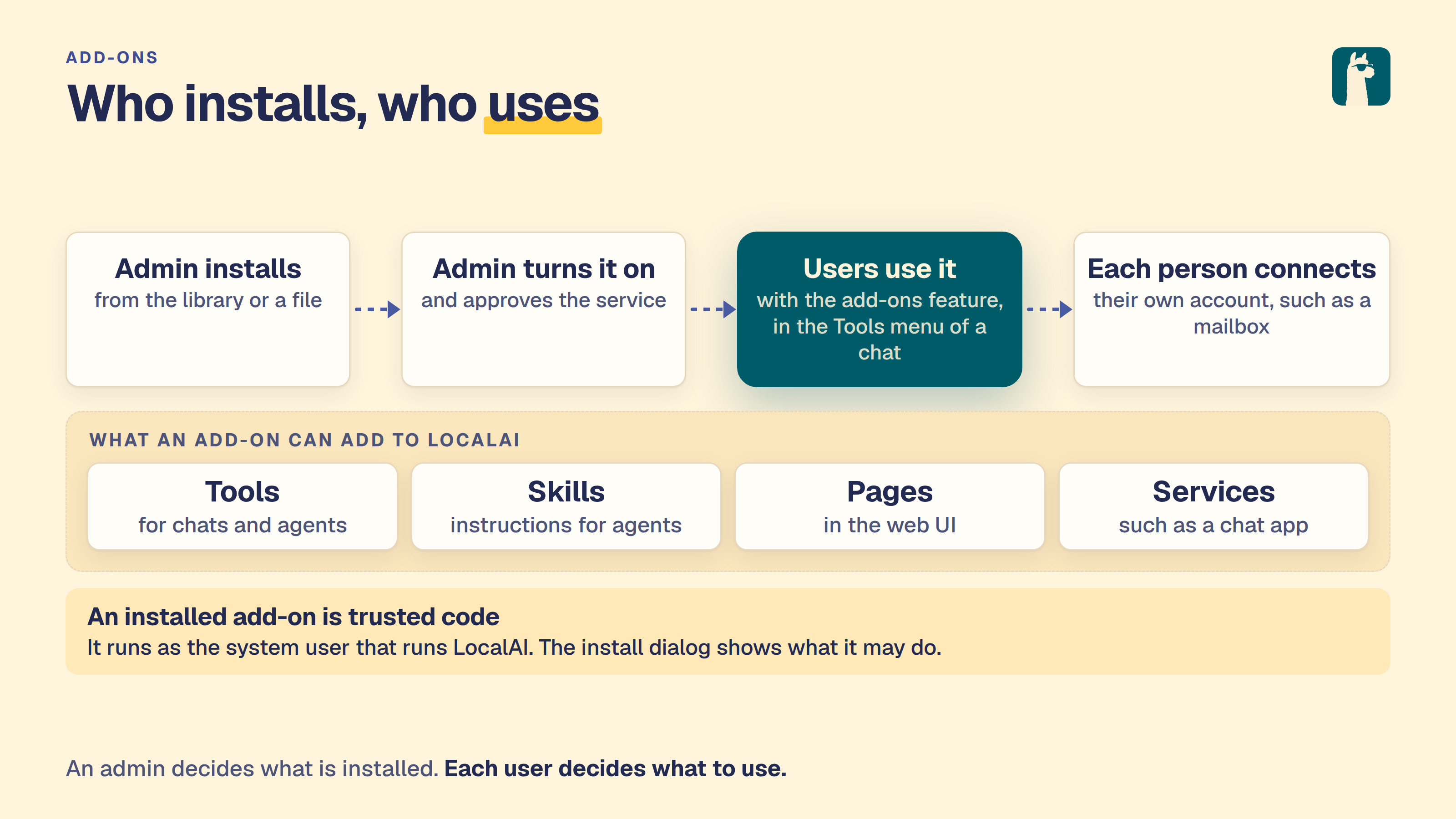
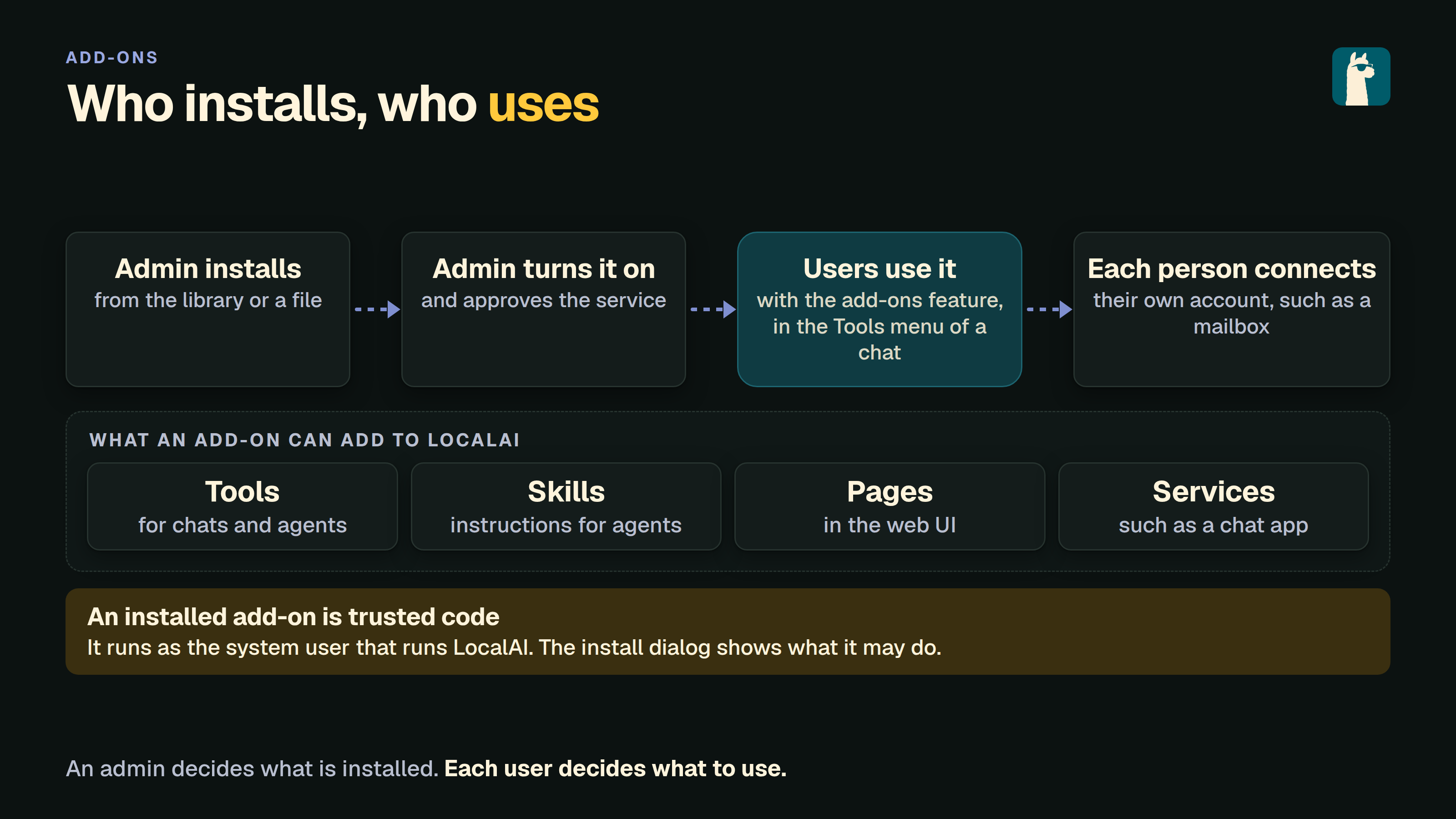
Who can do what
| Task | Who |
|---|---|
| Install, update, remove, change the library | An administrator. With authentication off, you are the administrator. |
| Use an installed add-on | A user who has the addons feature. It is off by default for new users on a server with accounts. |
| Connect your own account to a service, such as a mailbox | Each user, for their own account. An administrator approves the service client first. |
Find and install
- Sign in as an administrator and open Add-ons.
- Choose Find add-ons. The list is the library for this operating system and architecture.
- Pick an add-on and choose Install and turn on.
- Read the dialog. It shows what the add-on may do on the host. Confirm it in your own browser session.
The install checks the package digest and the signature against the policy of the library before anything runs. The add-on then shows in My add-ons. Use Show in sidebar to pin it.
A fresh install has no add-ons. The official library needs the network. A machine without network can use a private library that mirrors the packages, or an add-on zip file. Keep the addons folder of the data path on a volume if you use a container, or you must install the add-ons again when the container is replaced.
The library, sources and channels
LocalAI registers one library, official, on the first start. Which index it reads depends on the build.
- A release build reads the index of that release. Its add-ons are fixed versions, built and signed by that release.
- Any other build, such as a source build or a development build, reads the index on the master branch. Those add-ons are in the
developmentchannel. They change over time.
The Sources tab shows all libraries. An administrator can add another library, turn one off or remove it. When two libraries list the same add-on, a library that you added wins over a default. Two that you added conflict, and LocalAI refuses to install that add-on until you resolve it.
Install from a file
Choose Install from file and pick a zip. Nothing signs a local file, so LocalAI cannot tell who made it. The dialog shows the checksum, the version and the permissions the add-on asks for, and the note “Local file, unsigned”. You can check a file first with local-ai addons inspect <file>.
Use an add-on in a chat
An installed add-on is not on in every chat. Switch it on in the Tools menu of a chat. A saved agent uses only the add-ons that you name in the agent, so grant each add-on to the agent on purpose. When an add-on can change something, such as send mail, the write mode decides whether LocalAI asks you first. The default for a new connection is to ask.
Settings and connections
Open the details of an add-on to see what it can do, its settings and its connections. An add-on that talks to a service, such as Gmail or Telegram, needs a connection. For a service that uses an OAuth login, an administrator saves the client ID and secret once, and registers the redirect address with the service. Then each person signs in with their own account. The host keeps the tokens. The add-on never stores them.
Update and remove
When a newer version is in the library, the row shows Update. An upgrade starts the new version, and if it does not become ready, the old one starts again. To remove an add-on, open the menu of its row and choose Remove. Removing an add-on keeps its data.
Troubleshooting
| You see | Do this |
|---|---|
| A strip at the top says an add-on failed to start | Choose Set up or open Details. The reason is there. Other add-ons keep running. |
| “This add-on needs a newer LocalAI” | The add-on needs a feature that your version does not have. Update LocalAI. |
Install from file is refused with locked_by_deployment | Sign-in is off or the grants are locked. Turn on sign-in, or set --addon-host-ui-grants-without-auth knowingly. |
| No add-ons in the list | Check that the official library is on, that --addons-enabled is not false, and that the server can reach the network. |
For the full specification, see the contract reference.