Agents
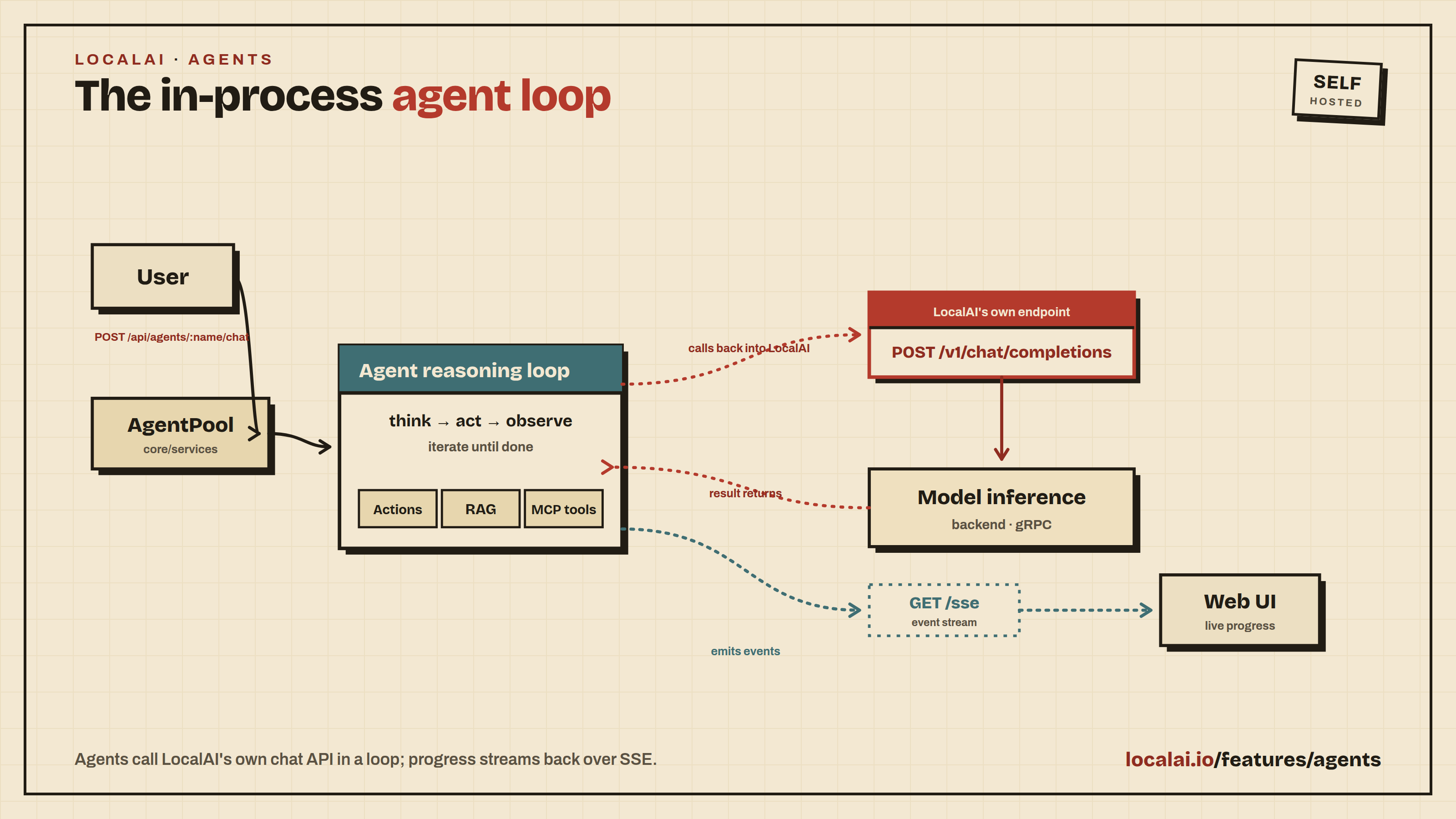
LocalAI includes a built-in agent platform powered by LocalAGI. Agents are autonomous AI entities that can reason, use tools, maintain memory, and interact with external services, all running locally as part of the LocalAI process.
LocalAGI is embedded in LocalAI. There is nothing separate to install or run.
Looking for something else? LocalAI has four agentic surfaces that are easy to confuse:
- Agents (this page): autonomous agents you build and run inside LocalAI, that reason, use tools, and act on their own.
- Terminal agent: an agent in your own shell.
local-ai chatreads your files and runs commands on your machine, behind an approval gate you control. - LocalAI Assistant: an admin chat modality for administering LocalAI itself: install models, manage backends and edit configs by chatting.
- MCP: the Model Context Protocol itself, the way a model is handed external tools. It sits underneath the other three rather than beside them.
New to agents? The Build your first agent walkthrough takes you from an empty Agents page to an agent that answers a message and uses one tool.
Overview
The agent system provides:
- Autonomous agents with configurable goals, personalities, and capabilities
- Tool/Action support - agents can execute actions (web search, code execution, API calls, etc.)
- Knowledge base (RAG) - per-agent collections with document upload, chunking, and semantic search
- Skills system - reusable skill definitions that agents can leverage, with git-based skill repositories
- SSE streaming - real-time chat with agents via Server-Sent Events
- Import/Export - share agent configurations as JSON files
- Agent Hub - browse and download ready-made agents from agenthub.localai.io
- Web UI - full management interface for creating, editing, chatting with, and monitoring agents
Getting Started
Agents are enabled by default. To disable them, set:
Creating an Agent
- Navigate to the Agents page in the web UI
- Click Create Agent or import one from the Agent Hub
- Configure the agent’s name, model, system prompt, and actions
- Open Preview to read the configuration that will be saved and, when editing, what differs from the saved agent. Secret values are hidden in the preview.
- Save, then give the agent a task from its page
The form folds into sections. Each section shows a mark when it is ready and one line that says what it holds. Start from offers a few starting points. Draft asks the model you chose to write a name, a description and instructions from one sentence; it is optional, nothing is saved until you save, and the draft may be wrong.
Running a task
Open an agent from the Agents page to see its model, tools, memory, skills and instructions, and a box to give it a task. A task starts a run with its own address, /app/agents/<name>/runs/<id>. While the agent works the page shows the thread: the steps folded into one line (“Worked 26 s, 5 steps”), the tool in use and the answer as it arrives. About a second and a half after the agent answers, the page settles into a report: the task, the outcome, the evidence (what each tool returned) and the steps. Follow-ups sit under the outcome and carry the earlier turns. Wide tables and code open wider on demand.
The server keeps no run history. Runs are recorded in the browser that watched them, up to 50 per agent, and the record holds task text, step text and answers. A run link opens only in the browser that recorded it, Clear run record on the agent page removes the record, and the last 14 runs of each agent appear as a strip on the Agents page. A run still marked as working five minutes after its last event reads as stopped. Durations are measured by the browser between sending the task and receiving the answer. The page does not show tokens or per-step timings from the server, and it has no Stop or approval control, because the agent API has neither; Pause on the agent stops it taking new work.
Jobs and scheduled tasks
The Jobs tab lists tasks: a prompt a model runs for you, on a schedule or whenever you start it. The page opens with one sentence about the last 7 days, built from the jobs the server returned (how many ran, how many finished, failed, were cancelled or are still going, and which task failed last time). Each task shows its model, its schedule in plain words with the cron expression under it, its last 14 jobs and an enabled switch; Run now asks for the values the prompt uses ({{.name}} gaps) and any media to attach, and the menu holds Edit and Delete. Delete waits 30 seconds with an Undo button, and nothing is deleted on the server until that time ends.
The run history is grouped by day, with one sentence for each job (the first line of its result, or its error). A row opens to show the error or the start of the result and one next action, Run again for a finished job or Cancel for one that is still going. Run again starts a new job with the same parameters and media, because the API has no retry call. A job opens as a document: the task as that run sent it, the outcome, whether the webhook was delivered, and the steps the server recorded.
The task form takes a schedule as presets (hourly, daily, weekdays) with a time, or as a custom cron expression of five fields (minute, hour, day, month, weekday) or an @hourly style shortcut. The form checks the expression and says what it means in words. Times follow the clock of the machine that runs LocalAI, which the browser cannot read, so the page shows no next run. The page also shows no tokens, because the jobs API returns none, and durations come from the job’s own start and end times.
Importing an Agent
You can import agent configurations from JSON files:
- Download an agent configuration from the Agent Hub or export one from another LocalAI instance
- On the Agents page, click Import
- Select the JSON file - you’ll be taken to the edit form to review and adjust the configuration before saving
- Click Create Agent to finalize the import
Configuration
Environment Variables
All agent-related settings can be configured via environment variables:
| Variable | Default | Description |
|---|---|---|
LOCALAI_DISABLE_AGENTS | false | Disable the agent pool feature entirely |
LOCALAI_AGENT_POOL_API_URL | (self-referencing) | Default API URL for agents. By default, agents call back into LocalAI’s own API (http://127.0.0.1:<port>). Set this to point agents to an external LLM provider. |
LOCALAI_AGENT_POOL_API_KEY | (LocalAI key) | Default API key for agents. Defaults to the first LocalAI API key. Set this when using an external provider. |
LOCALAI_AGENT_POOL_DEFAULT_MODEL | (empty) | Default LLM model for new agents |
LOCALAI_AGENT_POOL_MULTIMODAL_MODEL | (empty) | Default multimodal (vision) model for agents |
LOCALAI_AGENT_POOL_TRANSCRIPTION_MODEL | (empty) | Default transcription (speech-to-text) model for agents |
LOCALAI_AGENT_POOL_TRANSCRIPTION_LANGUAGE | (empty) | Default transcription language for agents |
LOCALAI_AGENT_POOL_TTS_MODEL | (empty) | Default TTS (text-to-speech) model for agents |
LOCALAI_AGENT_POOL_STATE_DIR | (data path) | Directory for persisting agent state. Defaults to LOCALAI_DATA_PATH if set, otherwise falls back to LOCALAI_CONFIG_DIR |
LOCALAI_AGENT_POOL_TIMEOUT | 5m | Default timeout for agent operations |
LOCALAI_AGENT_POOL_ENABLE_SKILLS | false | Enable the skills service |
LOCALAI_AGENT_POOL_VECTOR_ENGINE | chromem | Vector engine for knowledge base (chromem or postgres) |
LOCALAI_AGENT_POOL_EMBEDDING_MODEL | granite-embedding-107m-multilingual | Embedding model for knowledge base |
LOCALAI_AGENT_POOL_CUSTOM_ACTIONS_DIR | (empty) | Directory for custom action plugins |
LOCALAI_AGENT_POOL_DATABASE_URL | (empty) | PostgreSQL connection string for collections (required when vector engine is postgres) |
LOCALAI_AGENT_POOL_MAX_CHUNKING_SIZE | 400 | Maximum chunk size for document ingestion |
LOCALAI_AGENT_POOL_CHUNK_OVERLAP | 0 | Overlap between document chunks |
LOCALAI_AGENT_POOL_ENABLE_LOGS | false | Enable detailed agent logging |
LOCALAI_AGENT_POOL_COLLECTION_DB_PATH | (empty) | Custom path for the collections database |
LOCALAI_AGENT_HUB_URL | https://agenthub.localai.io | URL for the Agent Hub (shown in the UI) |
Knowledge Base Storage
By default, the knowledge base uses chromem - an in-process vector store that requires no external dependencies. For production deployments with larger knowledge bases, you can switch to PostgreSQL with pgvector support:
The PostgreSQL image quay.io/mudler/localrecall:v0.5.2-postgresql is pre-configured with pgvector and ready to use.
Connection safety timeouts (PostgreSQL only)
The embedded vector store sets per-connection timeouts so a single stuck or corrupt index can never hold a lock indefinitely and stall every other collection operation. Safe defaults are applied automatically - you only need to set these to override them:
| Variable | Default | Description |
|---|---|---|
POSTGRES_LOCK_TIMEOUT | 30s | Bounds how long a statement waits to acquire a lock, so queued statements fail fast instead of piling up. Set 0/off to disable. |
POSTGRES_IDLE_IN_TRANSACTION_TIMEOUT | 300s | Reaps abandoned transactions that would otherwise pin locks. Set 0/off to disable. |
POSTGRES_STATEMENT_TIMEOUT | (unset) | Bounds total statement runtime, auto-aborting a wedged query. Off by default since a large vector index build can exceed any fixed limit; index builds are exempted, so it is safe to enable. |
These are read directly from the LocalAI process environment by the embedded store (the same as DATABASE_URL and HYBRID_SEARCH_*).
Connection pool size (PostgreSQL only)
Every collection opens its own connection pool, so the total number of connections can reach the pool size times the number of collections. Keep this total below the max_connections setting of the PostgreSQL server.
| Variable | Default | Description |
|---|---|---|
POSTGRES_POOL_MAX_CONNS | 4 | Maximum number of connections in the pool of each collection. A pool_max_conns parameter in the database URL has priority. |
Docker Compose Example
Basic setup with in-memory vector store:
Setup with PostgreSQL for persistent knowledge base:
Agent Configuration
Each agent has its own configuration that controls its behavior. Key settings include:
- Name - unique identifier for the agent
- Model - the LLM model the agent uses for reasoning
- System Prompt - defines the agent’s personality and instructions
- Actions - tools the agent can use (web search, code execution, etc.). See the /docs/features/agent-actions/ for the full catalog of built-in actions and how to configure each one.
- Connectors - external integrations (Slack, Discord, etc.)
- Knowledge Base - collections of documents for RAG
- MCP Servers - Model Context Protocol servers for additional tool access
- Allowed / Excluded Tools (
allowed_tools,excluded_tools) - limit the tools the agent can see, including MCP tools. The agent always keeps its control actions (send_message,stop,update_state). If a tool is in both lists, it is excluded. - Required Tool Before Finish (
required_tool_before_finish) - a tool the agent must call successfully before it can give its final answer, for example a validation or policy check.required_tool_before_finish_promptchanges the reminder the model gets when it tries to finish early.required_tool_before_finish_attemptssets how many reminders it gets before the answer goes through anyway (default 3).
The pool-level defaults (API URL, API key, models) can be set via environment variables. Individual agents can further override these in their configuration, allowing them to use different LLM providers (OpenAI, other LocalAI instances, etc.) on a per-agent basis.
Skills
Skills are reusable instruction sets (a name, a description, and the skill’s content, optionally with attached resource files) that an agent can draw on while it works. They can be authored directly or imported from git-based skill repositories, so a set of skills can be shared across agents and machines.
Skills are disabled by default. The skills service only runs when you start LocalAI with LOCALAI_AGENT_POOL_ENABLE_SKILLS=true. With the default LOCALAI_AGENT_POOL_ENABLE_SKILLS=false, the Skills UI and the /api/agents/skills endpoints are inactive, and an imported agent that expects a skill will not find it.
Enable skills
Start LocalAI with the skills service turned on:
In Docker, add the same variable to the container environment.
Create a skill
With skills enabled, open the Agents section in the web interface and go to the Skills area. Create a skill by giving it:
- a name (used to reference the skill),
- a description (what the skill is for),
- the skill content (the instructions the agent follows when the skill applies),
- optionally, resource files the skill needs.
The same operation is available over REST:
You can also import a skill archive with POST /api/agents/skills/import, or add a git skill repository so its skills are pulled in.
Use a skill
Once a skill exists and the skills service is enabled, agents can use it as part of their reasoning. List the skills currently available with:
If a skill you expect is missing, confirm LocalAI was started with LOCALAI_AGENT_POOL_ENABLE_SKILLS=true.
The Skills and Memory libraries
The Skills and Memory pages work as libraries. A skill or a collection exists on its own and needs no agent. Each row says who uses it, read from the saved configuration of your agents: “Used by research-assistant +2”, or a quiet “Not used yet”. An agent uses a skill when enable_skills is on and the skill is in selected_skills (an empty selection means every skill). An agent reads the one collection that carries its own name, when enable_kb is on. Chat does not read skills or collections, so it is never listed as a user.
- Add to… on a skill opens a menu of agents. Each row shows an estimate of what the skill adds to every message: the characters of its content divided by four. With
skills_modeset totoolsthe content is read only when the model asks, so nothing is added up front. Removing the last selected skill from an agent switches skills off for it, because an empty selection would mean every skill. Removing a skill or a collection from an agent can be undone for a few seconds. - Add to… on a collection offers only the agent with the same name, and turns its knowledge base on.
- On a collection, Try a question searches that collection alone and shows the passages that come back with their scores (
POST /api/agents/collections/{name}/search, withmax_results). Add source uploads a file or adds a URL with a refresh interval in minutes. A failed upload shows the message the server returned, and can be retried. - Simulate a message shows what a context would load. Pick a collection on its own, or one of your agents: you see the skills the agent has on, an estimate of the tokens it adds around the message, and the passages that its own collection returns for that message. Nothing is sent to a model, so no answer is shown. A skill or collection that is not added anywhere can be tried in the sheet for that test only, and is never saved.
API Endpoints
All agent endpoints are grouped under /api/agents/:
Agent Management
| Method | Path | Description |
|---|---|---|
GET | /api/agents | List all agents with status |
POST | /api/agents | Create a new agent |
GET | /api/agents/:name | Get agent info |
PUT | /api/agents/:name | Update agent configuration |
DELETE | /api/agents/:name | Delete an agent |
GET | /api/agents/:name/config | Get agent configuration |
PUT | /api/agents/:name/pause | Pause an agent |
PUT | /api/agents/:name/resume | Resume a paused agent |
GET | /api/agents/:name/status | Get agent status and observables |
POST | /api/agents/:name/chat | Send a message to an agent |
GET | /api/agents/:name/sse | SSE stream for real-time agent events |
GET | /api/agents/:name/export | Export agent configuration as JSON |
POST | /api/agents/import | Import an agent from JSON |
GET | /api/agents/:name/files?path=... | Serve a generated file from the outputs directory |
GET | /api/agents/config/metadata | Get dynamic config form metadata (includes outputsDir) |
Skills
| Method | Path | Description |
|---|---|---|
GET | /api/agents/skills | List all skills |
POST | /api/agents/skills | Create a new skill |
GET | /api/agents/skills/:name | Get a skill |
PUT | /api/agents/skills/:name | Update a skill |
DELETE | /api/agents/skills/:name | Delete a skill |
GET | /api/agents/skills/search | Search skills |
GET | /api/agents/skills/export/* | Export a skill |
POST | /api/agents/skills/import | Import a skill |
Collections (Knowledge Base)
| Method | Path | Description |
|---|---|---|
GET | /api/agents/collections | List collections |
POST | /api/agents/collections | Create a collection |
POST | /api/agents/collections/:name/upload | Upload a document |
GET | /api/agents/collections/:name/entries | List entries |
POST | /api/agents/collections/:name/search | Search a collection |
GET | /api/agents/collections/:name/sources | List external sources |
POST | /api/agents/collections/:name/sources | Add an external source (update_interval is an integer number of minutes; defaults to 60) |
DELETE | /api/agents/collections/:name/sources | Remove an external source |
POST | /api/agents/collections/:name/reset | Reset a collection |
Actions
| Method | Path | Description |
|---|---|---|
GET | /api/agents/actions | List available actions |
POST | /api/agents/actions/:name/definition | Get action definition |
POST | /api/agents/actions/:name/run | Execute an action |
Using Agents via the Responses API
Agents can be used programmatically via the standard /v1/responses endpoint (OpenAI Responses API). Simply use the agent name as the model field:
This returns a standard Responses API response:
You can also send structured message arrays as input:
When the model name matches an agent, the request is routed to the agent pool. If no agent matches, it falls through to the normal model-based inference pipeline.
Chat with SSE Streaming
For real-time streaming responses, use the chat endpoint with SSE:
Send a message to an agent:
Each message runs as a new job. To continue a conversation, send its earlier turns as history; only user and assistant turns with text are used, and only the most recent 40 turns up to 64,000 characters:
The web UI does this for you: a run sends only its own turns as history, so a follow-up sees the task and the answers before it, and a new run starts without history. A request without history is answered without earlier context; the server keeps no web chat history of its own. In distributed mode (NATS) the history is not forwarded yet.
Listen to real-time events via SSE:
The SSE stream emits the following event types:
json_message- agent/user messagesjson_message_status- processing status updates (processing/completed)status- system messages (reasoning steps, action results)json_error- error notifications
Generated Files and Outputs
Some agent actions (image generation, PDF creation, audio synthesis) produce files. These files are automatically managed by LocalAI through a confined outputs directory.
How It Works
- Actions generate files to their configured
outputDir(which can be any path on the filesystem) - After each agent response, LocalAI automatically copies generated files into
{stateDir}/outputs/ - The file-serving endpoint (
/api/agents/:name/files?path=...) only serves files from this outputs directory - File paths in agent response metadata are rewritten to point to the copied files
This design ensures that:
- Actions can write files to any directory they need
- The file-serving endpoint is confined to a single trusted directory - no arbitrary filesystem access
- Symlink traversal is blocked via
filepath.EvalSymlinksvalidation
Accessing Generated Files
Use the file-serving endpoint to retrieve files produced by agent actions:
The path parameter must point to a file inside the outputs directory. Requests for files outside this directory are rejected with 403 Forbidden.
Metadata in SSE Messages
When an agent action produces files, the SSE json_message event includes a metadata field with the generated resources:
The web UI uses this metadata to display inline resource cards (images, PDFs, audio players) and to open files in the canvas panel.
Configuration
The outputs directory is created at {stateDir}/outputs/ where stateDir defaults to LOCALAI_AGENT_POOL_STATE_DIR (or LOCALAI_DATA_PATH / LOCALAI_CONFIG_DIR as fallbacks). You can query the current outputs directory path via:
This returns a JSON object including the outputsDir field.
Architecture
Agents run in-process within LocalAI. By default, each agent calls back into LocalAI’s own API (http://127.0.0.1:<port>/v1/chat/completions) for LLM inference. This means:
- No external dependencies - everything runs in a single binary
- Agents use the same models loaded in LocalAI
- Per-agent overrides allow pointing individual agents to external providers
- Agent state is persisted to disk and restored on restart
User → POST /api/agents/:name/chat → LocalAI
  → AgentPool → Agent reasoning loop
    → POST /v1/chat/completions (self-referencing)
      → LocalAI model inference → response
        → SSE events → GET /api/agents/:name/sse → UI