Setting Up Models
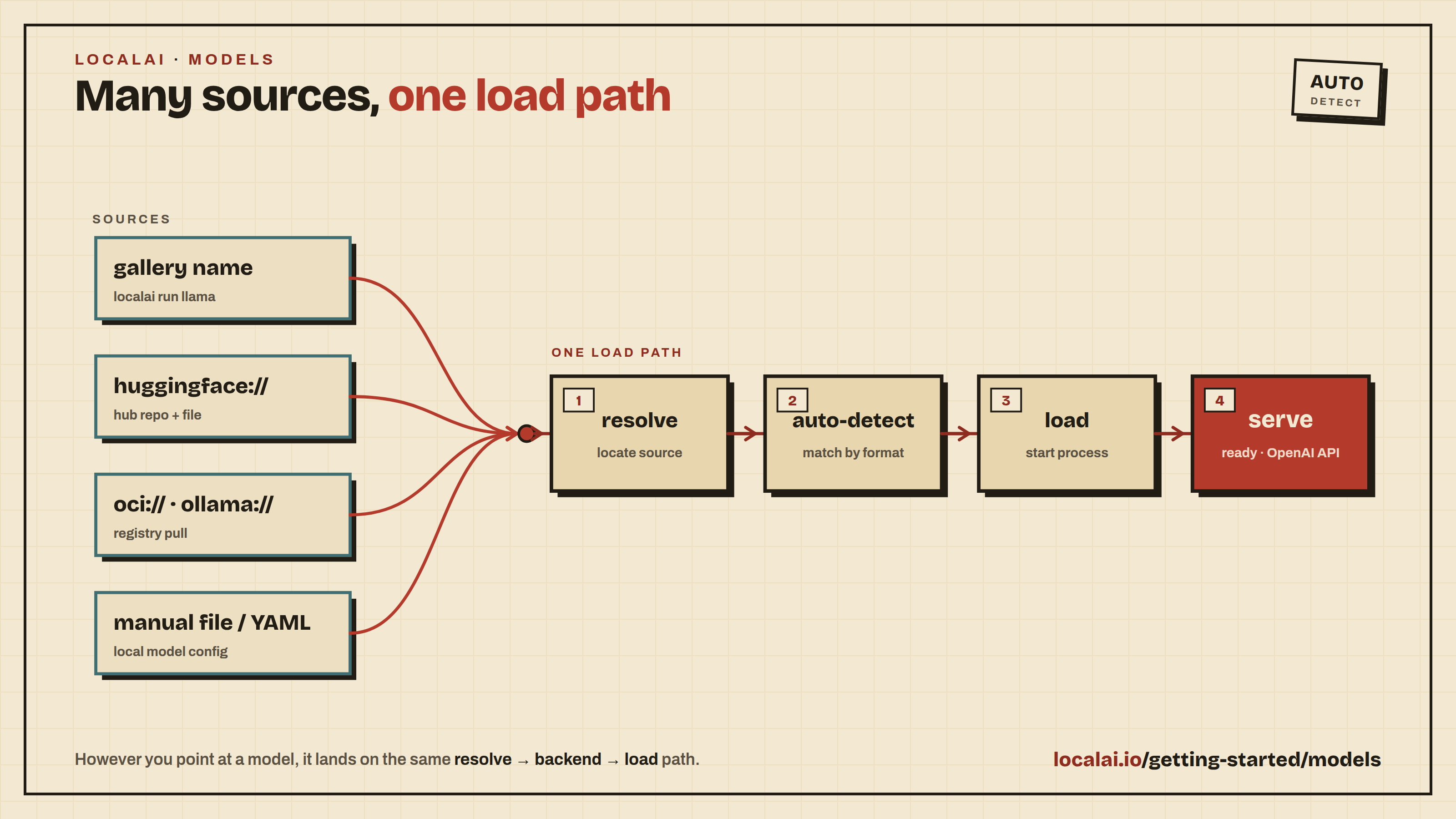
This section covers everything you need to know about installing and configuring models in LocalAI. You’ll learn multiple methods to get models running.
Prerequisites
- LocalAI installed and running (see Quickstart if you haven’t set it up yet)
- Basic understanding of command line usage
Method 1: Using the Model Gallery (Easiest)
The Model Gallery is the simplest way to install models. It provides pre-configured models ready to use.
GPU recommendations require a memory estimate within 95% of the detected model memory budget at a 4096-token context. If none of the sampled candidates fit, the recommendation section is hidden. You can still browse the gallery and check individual models at your intended context size. On the Models page the recommendations appear as a “Best for this machine” list in the pane beside the table while no model is selected. Once you have installed a model, the list shows only the best fit and offers the others behind “more that fit”. The Home page also omits static GPU suggestions when no fitting recommendation is available.
Via WebUI
- Open the LocalAI WebUI at
http://localhost:8080 - Navigate to Models → Explore
- Browse or search the available models
- Click “Install” on any model you want
- Wait for installation to complete. Progress appears in the strip at the top of the app, and Operate → Activity shows every install in flight, plus what failed and what finished (see Activity)
For more details, refer to the Gallery Documentation.
The same Models page owns the complete lifecycle. Switch to Installed to search local configurations, filter them by running, idle, disabled, pinned, or distributed state, and open a model’s runtime controls. Load and stop are on each row; edit, pin, disable, backend logs, and remove are in the row menu and in the details of the selected model. The current view, search, filter, and selection are stored in the URL so links and browser history preserve your place. The disk strip in the page header shows the free space on the models disk and opens a review of what can be removed to free more (see Model gallery).
Via CLI
To run models available in the LocalAI gallery, you can use the model name as the URI. For example, to run LocalAI with the Hermes model, execute:
To install only the model, use:
Note: The galleries available in LocalAI can be customized to point to a different URL or a local directory. For more information on how to setup your own gallery, see the Gallery Documentation.
Browse Online
Visit models.localai.io to browse all available models in your browser.
On a phone, the model page wraps build descriptions in the Variants table to keep the fit status and install buttons visible.
Method 1.5: Import Models via WebUI
The WebUI import page (Build → Import) takes either a source to resolve or a configuration to write. Both live on the same page, behind the two tabs in its header. From a source, it is a short guided flow: source, review, import, done.
From a source
- Open the LocalAI WebUI at
http://localhost:8080 - Open Build, then Import
- Paste the source into the Source field (e.g.
https://huggingface.co/Qwen/Qwen3-VL-8B-Instruct-GGUF), or start from one of the examples - Review what the page says, then press Enter or click Import
While you type, the page reads the spelling of the source (Hugging Face repository, direct URL, configuration file, OCI image, Ollama model, or a path on the host) and shows the request the form will send. It also runs the checks that can be made before the import starts: whether the name is already in use, whether the chosen backend is installed, and how much disk and memory are free. The server returns no preview of the model configuration, the size or the memory a model needs before the import starts, so the page does not show them. They appear once the import starts, next to the free memory and disk.
The What you can paste panel beside the field lists every accepted scheme:
huggingface://, hf://, a full Hugging Face URL, any direct https:// URL,
file:// and absolute paths on the host, oci://, ocifile://, and
ollama://.
Expand Advanced options directly below the request preview to override settings before importing. The controls include backend, name, description, quantizations, MMProj quantizations, model type, embeddings support, the diffusers-specific fields, and arbitrary custom key-value preferences. The backend list can be narrowed by modality first. Fields that the selected backend cannot use are hidden, and anything you typed into them is kept in case you switch back.
The source format check does not contact the source or validate it as a model. An HTTPS URL can point to a web page rather than model weights.
Leaving the backend on auto-detect lets LocalAI choose from the source. Selecting a backend sends an explicit backend preference in the previewed request. If more than one installed backend can serve the detected modality, the page says so and offers the candidates inline — picking one resubmits the import.
Repositories under mlx-community are imported with the native MLX backend.
LocalAI uses Hugging Face’s pipeline metadata to select mlx-vlm for
vision-language models and mlx-audio for text-to-speech models; other MLX
repositories use mlx. An explicit backend selection in the import form always
overrides this automatic routing.
Once the import starts, the page reports the download size and the memory the model needs against what is free, then the current phase, the bytes transferred and a progress bar. When the model is ready, the page names it and links to a chat with it and to Models.
Writing YAML
For full control over model configuration, switch to the Write YAML tab and edit the configuration directly, then click Create. The editor provides syntax highlighting and a copy button, and accepts the same configuration keys documented under Advanced.
This is especially useful for:
- Custom model configurations
- Fine-tuning model parameters
- Setting up complex model setups
- Editing existing model configurations
When the configuration references remote assets, Create does not download them inside the request: the import is queued like a gallery installation, and the page reports the job’s progress until the model is ready. These configurations are queued:
- a URL in
parameters.modelormmproj, ordownload_filesentries; - an
hf://reference or a bareowner/repoinparameters.model, on a backend that consumes a model directory; - an explicit
artifacts:block. The configuration file is written once every download has finished, so a failed download never leaves a config pointing at files that do not exist. A configuration that only references files already on disk is written immediately, as before.
A queued import runs through the same installer as a gallery installation, so it differs from an immediate write in two ways:
- Recommended sampling parameters for the model family (for example
temperatureandtop_p) are added underparameters:when the configuration does not set them. The immediate write stores your configuration exactly as posted. - When automatic backend installation is enabled, the backend named in the configuration is installed as part of the job.
Set the parameters you care about explicitly if you need the same stored file in both cases.
The same split applies to the API behind the page: POST /models/import
answers a queued import with a job id and a status URL to poll
(/models/jobs/{id} — the same shape gallery installs use), and a
download-free import with a plain success response.
If you cancel a queued import, the import page and model editor report the cancellation and stay on the current page. They report success only after the job succeeds.
Method 2: Installing from Hugging Face
LocalAI can directly install models from Hugging Face:
The format is: huggingface://<repository>/<model-file> (
Examples
Method 3: Installing from OCI Registries
Ollama Registry
Standard OCI Registry
On every model download — Ollama and OCI registries, the model gallery, and plain HTTP(S) file URLs alike — LocalAI identifies itself with a LocalAI/<version> (<os>; <arch>) User-Agent header (for example LocalAI/v3.2.1 (linux; amd64)) so registry and gallery operators can attribute usage to LocalAI. Builds from source that carry no stamped version send LocalAI (<os>; <arch>) instead.
Run Models via URI
To run models via URI, specify a URI to a model file or a configuration file when starting LocalAI. Valid syntax includes:
file://path/to/model(absolute path to a file within your models directory)huggingface://repository_id/model_file(e.g.,huggingface://TheBloke/phi-2-GGUF/phi-2.Q8_0.gguf)- From OCIs:
oci://container_image:tag,ollama://model_id:tag - From configuration files:
https://gist.githubusercontent.com/.../phi-2.yaml
When using file:// URLs, the path must point to a file within your models directory (specified by MODELS_PATH). Files outside this directory are rejected for security reasons.
Configuration files can be used to customize the model defaults and settings. For advanced configurations, refer to the Customize Models section.
Examples
Method 4: Manual Installation
For full control, you can manually download and configure models.
Step 1: Download a Model
Download a GGUF model file. Popular sources:
Example:
Step 2: Create a Configuration File (Optional)
Create a YAML file to configure the model:
Customize model defaults and settings with a configuration file. For advanced configurations, refer to the Advanced Documentation.
Step 3: Run LocalAI
Choose one of the following methods to run LocalAI:
Other Docker Images:
For other Docker images, please refer to the table in the container images section.
Example:
- If running on Apple Silicon (ARM), it is not recommended to run on Docker due to emulation. Follow the build instructions to use Metal acceleration for full GPU support.
- If you are running on Apple x86_64, you can use Docker without additional gain from building it from source.
Other Docker Images:
For other Docker images, please refer to the table in Getting Started.
Note: If you are on Windows, ensure the project is on the Linux filesystem to avoid slow model loading. For more information, see the Microsoft Docs.
For Kubernetes deployment, see the Kubernetes installation guide.
LocalAI binary releases are available on GitHub.
If installing on macOS, you might encounter a message saying:
“local-ai-git-Darwin-arm64” (or the name you gave the binary) can’t be opened because Apple cannot check it for malicious software.
Hit OK, then go to Settings > Privacy & Security > Security and look for the message:
“local-ai-git-Darwin-arm64” was blocked from use because it is not from an identified developer.
Press “Allow Anyway.”
For instructions on building LocalAI from source, see the Build from Source guide.
GPU Acceleration
For instructions on GPU acceleration, visit the GPU Acceleration page.
For more model configurations, visit the Examples Section.
Understanding Model Files
File Formats
- GGUF: Modern format, recommended for most use cases
- GGML: Older format, still supported but deprecated
Quantization Levels
Models come in different quantization levels (quality vs. size trade-off):
| Quantization | Size | Quality | Use Case |
|---|---|---|---|
| Q8_0 | Largest | Highest | Best quality, requires more RAM |
| Q6_K | Large | Very High | High quality |
| Q4_K_M | Medium | High | Balanced (recommended) |
| Q4_K_S | Small | Medium | Lower RAM usage |
| Q2_K | Smallest | Lower | Minimal RAM, lower quality |
Choosing the Right Model
Consider:
- RAM available: Larger models need more RAM
- Use case: Different models excel at different tasks
- Speed: Smaller quantizations are faster
- Quality: Higher quantizations produce better output
Model Configuration
Basic Configuration
Create a YAML file in your models directory:
Advanced Configuration
See the Model Configuration guide for all available options.
Managing Models
List Installed Models
Ollama clients can list configured models with GET /api/tags and loaded models with GET /api/ps. Each entry includes size in bytes when LocalAI can resolve a non-empty primary weights file on disk. This is the size of that file, not the total size of a multi-file model or its memory use. Unknown sizes are omitted; /api/ps also omits size_vram because per-model VRAM use is not available.
Disk Usage
In the WebUI, the Installed tab of Models shows how much disk each installed configuration uses. The Size column holds the size on disk, and for a model that shares files with others it adds the shared part (“1.2 GB shared”). A file referenced by more than one configuration is counted once in the total under the table, which also gives the shared total. The inspector beside the table names the models a model shares files with, and a model page lists its files under Usage and history, with each file’s size, the other models that use it, and whether it is missing. Removing a model frees only its exclusive files; the files it shares stay while another configuration uses them. A reference whose file is not on disk (a download that never finished, or a file removed by hand) is marked on the model and in the cleanup review.
Only an admin can read the report. For anyone else, or if the read fails, the Size column shows the size of the files the gallery lists, and “size unknown” for a model the gallery does not list.
The report behind these views is available directly (admin only):
It returns per-model sizes with the shared portion split out, the file-to-models relation, and missing references. Files in the models directory that no configuration references are not included.
Remove Models
Simply delete the model file and configuration from your models directory:
Troubleshooting
Model Not Loading
Check backend: Ensure the required backend is installed
Check logs: Enable debug mode
Verify file: Ensure the model file is not corrupted
Out of Memory
- Use a smaller quantization (Q4_K_S or Q2_K)
- Reduce
context_sizein configuration - Close other applications to free RAM
Wrong Backend
Check the Compatibility Table to ensure you’re using the correct backend for your model.
Best Practices
- Start small: Begin with smaller models to test your setup
- Use quantized models: Q4_K_M is a good balance for most use cases
- Organize models: Keep your models directory organized
- Backup configurations: Save your YAML configurations
- Monitor resources: Watch RAM and disk usage